Motherboards are the backbone of any computer system, serving as the central hub where all components connect and communicate. Understanding their role is crucial for anyone looking to build or upgrade their PC. From the CPU to RAM and expansion cards, the motherboard coordinates every operation, making it a vital piece of technology in both everyday use and advanced computing.
This guide will take you through the essential elements of motherboards, exploring various types, key specifications, and their significance in overall system performance. Whether you’re a seasoned builder or a newcomer, grasping the intricacies of motherboards will empower you to make informed decisions about your hardware.
The Fundamental Role of a Motherboard in Computer Architecture
The motherboard is the heart of any computer system, serving as the main circuit board that interconnects all components and peripherals. It provides the necessary communication pathways for data transfer, power distribution, and signal processing, making it a critical element in the overall functionality and performance of a computer. Understanding how a motherboard operates and the components it houses is crucial for anyone interested in computer architecture.
The motherboard functions by allowing different parts of a computer to communicate with each other through a series of buses and chipset controllers. The CPU, RAM, storage devices, and various expansion cards connect to the motherboard, effectively creating a cohesive system. The chipset plays an essential role in managing data flow between the processor and other components, ensuring that information is transmitted efficiently and without error. Additionally, the motherboard houses BIOS or UEFI firmware, which initializes the hardware during the startup process and provides runtime services for operating systems and programs.
Components Typically Found on a Motherboard
The design of a motherboard can vary significantly depending on its intended use, but several key components are commonly found across most models. These components are vital for the motherboard’s functionality and performance. The following list Artikels the primary components and their purposes:
- CPU Socket: This is where the central processing unit (CPU) is installed, serving as the brain of the computer.
- RAM Slots: These slots hold the memory modules, allowing for data storage and quick retrieval by the CPU during operation.
- Chipset: This component manages communication between the CPU, RAM, and other peripherals, influencing the overall speed and efficiency of the system.
- Expansion Slots: These allow additional components, such as graphics cards or sound cards, to be added, enhancing the computer’s capabilities.
- Storage Connectors: SATA and M.2 ports connect hard drives and SSDs, facilitating data storage and access.
- Power Connectors: These connections provide power from the power supply unit (PSU) to the motherboard and its components.
- I/O Ports: A variety of ports for connecting external devices, such as USB, HDMI, and Ethernet, are located on the rear I/O panel.
The significance of the motherboard in the overall performance of a computer cannot be overstated. A high-quality motherboard can enhance processing speed, memory performance, and stability, directly affecting the user experience. Furthermore, the choice of motherboard influences upgrade potential, as it determines compatibility with future components, making it a vital consideration for long-term system performance.
A Comprehensive Guide to Different Types of Motherboards
Motherboards serve as the backbone of a computer system, connecting all components and enabling communication between them. The market offers various motherboard types tailored to different needs, from gaming to compact builds. Understanding these types can help users make informed decisions based on their specific requirements and preferences.
Types of Motherboards
Motherboards are categorized primarily by their form factors, which dictate their size, layout, and compatibility with components. The three most common types include ATX, MicroATX, and Mini-ITX. Each type has distinct specifications, use cases, advantages, and disadvantages.
- ATX: The Advanced Technology eXtended (ATX) motherboard measures 305mm x 244mm and is favored for its expandability and performance. It typically features multiple expansion slots and ports, making it ideal for gaming rigs and workstations. For example, the ASUS ROG Strix Z490-E is an ATX board that supports high-performance CPUs and extensive RAM.
- MicroATX: Slightly smaller than ATX, measuring 244mm x 244mm, MicroATX boards offer a balance between size and functionality. They usually have fewer expansion slots than ATX but still provide ample connectivity options. The MSI B450M PRO-VDH MAX is a popular choice for budget builds that need decent performance without excessive space. MicroATX is excellent for small to mid-size cases and for users who don’t require numerous additional components.
- Mini-ITX: At just 170mm x 170mm, Mini-ITX motherboards are ideal for compact builds. Although they have limited expansion slots, they are perfect for home theater PCs or small workstations. The ASRock A320M-ITX/ac is a well-regarded Mini-ITX motherboard, offering built-in Wi-Fi and Bluetooth, making it suitable for compact living spaces.
The advantages of ATX boards include extensive expandability and better thermal management due to more available space. However, they require larger cases, which may not be suitable for all environments. MicroATX boards strike a good balance between size and features, making them versatile for various builds but may lack the same level of expandability as ATX. Mini-ITX boards are perfect for small builds, allowing for portability and space-saving designs, but the limited slots can restrict users who want high-end hardware.
“The choice of motherboard directly impacts the performance and upgradeability of your computer system.”
Key Specifications to Consider When Choosing a Motherboard
Selecting the right motherboard is a critical step in building a powerful and future-proof PC. The motherboard serves as the backbone of your system, connecting all components, including the CPU, RAM, and expansion cards. Understanding key specifications will help you make informed choices that enhance performance and upgrade potential.
One of the foremost specifications to consider is the chipset type. The chipset determines the communication between the processor, memory, and other peripherals. There are various chipsets available, with Intel and AMD being the primary manufacturers. For Intel, chipsets like the Z690 or B560 offer different levels of performance and features. The Z-series supports overclocking and numerous I/O options, while B-series provides a more budget-friendly alternative with essential features. AMD’s B550 and X570 chipsets also present a range of capabilities, particularly for gaming and high-performance tasks.
RAM Compatibility and Expansion Slots
When evaluating a motherboard, RAM compatibility is crucial as it directly affects the system’s speed and efficiency. Motherboards come with different RAM slots and support varying types of RAM modules. Commonly, you’ll find DDR4 and DDR5 types. It’s essential to check the maximum RAM capacity and the number of slots available. Most motherboards have four DIMM slots, allowing for dual-channel configurations that significantly improve memory bandwidth. For instance, a motherboard that supports 64GB of DDR4 RAM at 3200MHz can offer excellent performance for gaming and productivity applications.
Expansion slots are another vital specification that impacts the versatility and expandability of your system. PCIe slots, particularly PCIe 4.0 and the upcoming PCIe 5.0, enhance the connection speed to GPUs, SSDs, and other peripherals. A motherboard with multiple PCIe x16 slots allows for multiple graphics cards, which is beneficial for gaming, video editing, and intensive computing tasks. Additionally, M.2 slots for NVMe drives are becoming standard; they offer superior speed compared to traditional SATA connections, enhancing overall system performance.
In summary, understanding chipset types, RAM compatibility, and the number of expansion slots will significantly influence your system’s performance and upgradeability. Selecting a motherboard with the right specifications is essential for building a robust and future-proof setup that meets your needs.
The Importance of BIOS and UEFI in Motherboard Functionality
The BIOS (Basic Input/Output System) and UEFI (Unified Extensible Firmware Interface) are critical components embedded in the motherboard firmware that manage and facilitate the communication between the operating system and the hardware. Understanding the roles of these interfaces is essential for anyone working with computer systems, from casual users to IT professionals.
The BIOS performs foundational tasks such as hardware initialization during the booting process and providing a runtime environment for the operating system. It reads the configuration settings stored in a non-volatile memory chip and performs a Power-On Self-Test (POST) to ensure that all hardware components are functioning correctly. If everything is in order, the BIOS then loads the operating system from the designated storage device, allowing the user to interact with the machine.
Accessing and Configuring BIOS and UEFI
Accessing the BIOS or UEFI firmware settings usually requires pressing a specific key during the boot-up phase, commonly the Delete, F2, or Esc key. Once inside, users can navigate through a structured menu system to configure various settings such as boot order, CPU configurations, and memory settings. Both interfaces offer options for advanced configurations, but UEFI tends to have a more user-friendly graphical interface compared to the traditional text-based BIOS setup.
Differences Between BIOS and UEFI
The transition from BIOS to UEFI brings significant changes that impact users in various ways. UEFI supports larger hard drives (over 2 TB) and provides a modern interface with mouse support. Furthermore, UEFI includes secure boot functionality, which helps prevent unauthorized access to the operating system by only allowing signed software to boot.
– Legacy vs. Modern: BIOS is an older system that can be limiting for newer hardware configurations, whereas UEFI is designed to be more flexible and capable of handling modern technology.
– User Interface: BIOS typically presents a text-based menu, making it less intuitive, while UEFI features a graphical interface that simplifies navigation and configuration.
– Boot Speed: UEFI can significantly reduce boot times compared to BIOS, optimizing the startup process for newer systems.
“The shift from BIOS to UEFI is not just an upgrade; it’s a substantial evolution in how motherboards manage hardware-software interactions.”
In essence, the choice between BIOS and UEFI impacts user experience and system capabilities, emphasizing the importance of these interfaces in the overall motherboard functionality.
Troubleshooting Common Motherboard Issues
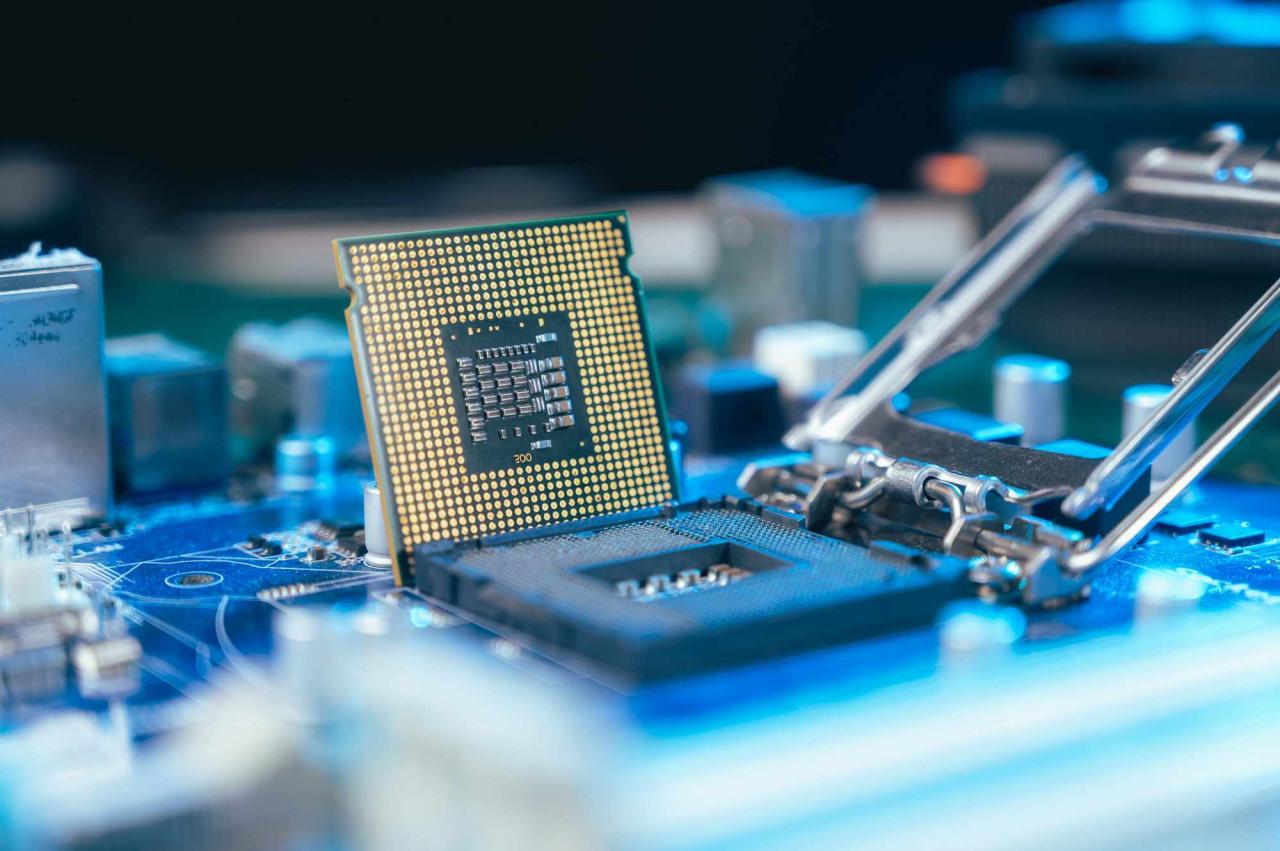
Motherboards serve as the backbone of a computer, connecting all components and allowing them to communicate. However, issues can arise that disrupt this delicate balance, resulting in malfunctioning hardware or system instability. Identifying and resolving these problems is crucial for maintaining optimal performance and extending the lifespan of your computer.
A variety of common problems can occur with motherboards, including power failures, booting issues, and hardware incompatibilities. Symptoms may range from the system not powering on at all to unexpected crashes or freezes during operation. Often, these issues stem from faulty components, outdated BIOS versions, or improper connections. In many instances, the motherboard may emit beeping sounds as a diagnostic signal, indicating specific failures. For example, a series of long beeps might suggest a memory-related issue, while short beeps could point to a graphics card failure.
Diagnosing and Resolving Issues
Understanding how to troubleshoot these common motherboard issues can save time and money. Here are effective methods to diagnose and resolve problems:
Begin by visually inspecting the motherboard for any physical damage, such as burnt components, bulging capacitors, or loose connections. Ensure all cables are securely connected, and reseat components like RAM and the CPU, as loose connections can lead to performance issues.
Use a multimeter to test the power supply, confirming it delivers the correct voltage. If the power supply appears functional, the next step is to reset the BIOS. This can often rectify configuration errors that may prevent the system from booting.
When performing these tasks, it’s essential to document any changes made and observe the behavior of the system after each adjustment.
“Always ensure that you are grounded before touching internal components to prevent static damage.”
If these DIY methods do not resolve the issue, it may be time to seek professional assistance. Complicated motherboard problems, such as those requiring soldering or advanced repairs, should be left to experienced technicians. Furthermore, if the motherboard has sustained severe damage, replacement might be more cost-effective than repair. Always weigh the cost of repairs against the potential benefits of upgrading to newer technology, which may provide improved performance and features.
The Future of Motherboard Technology
As technology continues to evolve, motherboards are undergoing significant changes, shaping the future of computing. Innovations such as increased integration, enhanced power efficiency, and improved connectivity features are transforming motherboards into smarter, more versatile components. These advancements not only affect hardware capabilities but also influence consumer choices and overall computing experiences.
The shift towards increased integration in motherboard technology is a defining trend. Companies are focusing on creating all-in-one designs that incorporate essential components directly onto the motherboard. This may include graphics processing units (GPUs), memory controllers, and even storage interfaces such as NVMe. By integrating these components, manufacturers can reduce the physical footprint of systems and enhance performance due to shorter data paths. The result is a streamlined design that allows for greater efficiency and reduced power consumption.
Power efficiency is another critical aspect reshaping motherboard technology. With the rise of energy-conscious consumers, manufacturers are prioritizing the development of motherboards that minimize power usage while maximizing performance. This trend is facilitated by advancements such as low-power components and improved voltage regulation. For instance, new power management technologies dynamically adjust the power supplied to various components based on real-time usage, reducing waste. These innovations not only contribute to lower energy bills but also enhance the longevity and reliability of devices.
Enhanced connectivity features are also at the forefront of motherboard innovations. Technologies like PCIe 4.0 and the upcoming PCIe 5.0 are setting new standards for data transfer rates, catering to the increasing demands of high-performance applications, including gaming and content creation. Furthermore, the integration of Wi-Fi 6 and 5G capabilities into motherboards allows for faster internet speeds and more reliable connections, meeting the needs of modern consumers who require seamless online experiences.
In summary, the future of motherboard technology is poised to revolutionize consumer choices and computing experiences. With a focus on increased integration, energy efficiency, and superior connectivity, the next generation of motherboards will deliver unmatched performance and convenience. As these trends continue to develop, consumers can expect more powerful, efficient, and versatile computing solutions that adapt to their needs.
Building a PC: The Motherboard’s Role in System Assembly
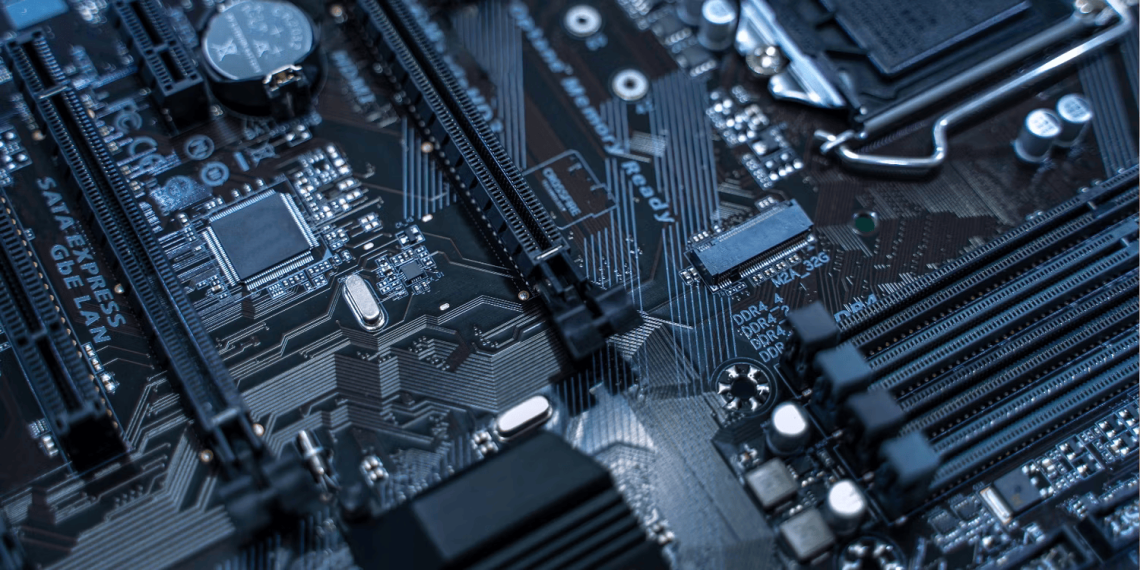
Integrating a motherboard into a custom PC build is a critical step that lays the foundation for your entire system. The motherboard serves as the central hub where all components connect, enabling communication between the CPU, RAM, storage devices, and peripherals. Properly installing and connecting the motherboard ensures that your PC runs smoothly and efficiently.
When integrating a motherboard into a custom PC build, begin by preparing the case and gathering all necessary components. Ensure that the workspace is clean and static-free, using an anti-static wrist strap if available. Start with the installation of the CPU into the motherboard’s socket, following the manufacturer’s instructions closely to avoid damaging the pins. Once the CPU is in place, apply thermal paste if required and attach the CPU cooler. Next, insert the RAM sticks into the correct slots, which are usually color-coded to indicate dual-channel configuration.
Connecting Components to the Motherboard
Connecting various components is essential for the motherboard to function correctly. Each component must be connected in the appropriate manner to ensure optimal performance. Here’s a guide for connecting major components:
1. Power Supply: Connect the 24-pin ATX power connector from the power supply to the motherboard. Additionally, connect the 4 or 8-pin CPU power cable near the CPU socket to provide power to the processor.
2. Storage Devices: For SSDs and HDDs, use SATA cables to connect the drives to the SATA ports on the motherboard. Don’t forget to connect the power cables from the power supply to each storage device.
3. Graphics Card: Insert the graphics card into the PCIe slot and secure it with screws. Connect any necessary power cables from the power supply to the graphics card.
4. Front Panel Connectors: Connect the power button, reset button, and LED indicators from the case to the respective headers on the motherboard. Refer to the motherboard manual for the correct pin layout.
Best practices for cable management and thermal considerations should be observed during assembly. Use cable ties or Velcro straps to bundle cables neatly, preventing obstruction of airflow. Ensure that cables do not block the fans or other components. Maintain a clear path for airflow by routing cables along the edges of the case. Avoid excessive tight bends in cables to prevent damage and improve airflow.
In addition, consider the placement of components and airflow direction. Strategically place the fans to create an efficient cooling setup, with intake fans positioned at the front and exhaust fans at the rear or top of the case. This ensures that hot air is effectively expelled, maintaining optimal temperatures for all components.
The Interplay Between Motherboards and Graphics Cards
The relationship between motherboards and graphics cards is central to the performance of any computer system, especially for gaming, design, or video editing. These two components must work seamlessly together to harness the full potential of any setup. Understanding their interplay not only helps in selecting the right components but also ensures optimal performance to meet user needs.
Motherboard specifications can significantly influence graphics card performance in several ways. Factors such as PCIe slot versions, the number of lanes, and overall chipset capabilities play a crucial role. For example, a motherboard with a PCIe 4.0 slot can deliver higher bandwidth compared to its predecessors, allowing modern graphics cards to perform at their peak. Additionally, having enough lanes is essential; a x16 slot is ideal for graphics cards, as it offers the maximum bandwidth. If a motherboard only provides a x8 connection, the graphics card may not reach its full potential, causing a bottleneck in data transfer that affects frame rates and overall gaming performance.
Compatibility Factors for Pairing Motherboards and Graphics Cards
When selecting a motherboard and graphics card combination, several compatibility factors must be considered to ensure a harmonious relationship between the two components:
1. Socket Type: The CPU socket type on the motherboard must match the processor being used, as this indirectly affects the GPU performance. High-end GPUs coupled with lower-tier processors can lead to performance limitations.
2. Power Supply Capacity: The motherboard must support the power requirements of the graphics card. High-performance GPUs often require additional power connectors which need to be supported by the motherboard’s design and the power supply unit (PSU).
3. Form Factor: The physical size of the graphics card and the motherboard’s form factor must be compatible. For instance, if the motherboard is a Mini-ITX, it may not accommodate larger full-sized GPUs effectively.
4. Driver Support: The motherboard chipset should have driver support for the latest graphics cards, ensuring that updates can be applied for performance and compatibility improvements.
5. Cooling Solutions: Adequate airflow and cooling solutions must be considered, as powerful graphics cards generate more heat. The motherboard’s design and layout should facilitate airflow to keep temperatures in check, preventing thermal throttling.
The interplay between motherboards and graphics cards is crucial for maximizing a computer’s performance, particularly in high-demand applications.
Ending Remarks
In conclusion, the motherboard is more than just a circuit board; it’s a complex assembly that dictates your computer’s performance and capabilities. As technology continues to evolve, keeping abreast of trends and innovations will equip you to select the right motherboard for your needs, ensuring that your system remains powerful and relevant for years to come. Remember, a well-chosen motherboard can make all the difference in your computing experience.
Helpful Answers
What is the main function of a motherboard?
The main function of a motherboard is to connect and communicate between various hardware components, allowing them to work together effectively.
Can I use any motherboard with any CPU?
No, motherboards are designed for specific CPU types and socket types, so compatibility must be checked before purchasing.
What are expansion slots on a motherboard?
Expansion slots allow additional components, such as graphics cards and sound cards, to be added to the motherboard to enhance functionality.
How do I know if my motherboard supports my RAM?
You can check the motherboard specifications for RAM compatibility, including the type (e.g., DDR4), speed, and maximum capacity.
What is the difference between BIOS and UEFI?
BIOS is the traditional firmware interface for booting computers, while UEFI is a modern replacement that offers more advanced features and better performance.
Can I upgrade my motherboard without changing other components?
It depends on the compatibility of the new motherboard with existing components like the CPU, RAM, and power supply; some upgrades may necessitate additional changes.